
An STL file is just a list of triangles, and the slicer trusts that list completely. When triangles have flipped normals, the slicer thinks the inside of the model is the outside, and when faces intersect themselves, the slicer cannot tell what is solid and what is not. Both defects produce the same family of print failures: missing walls, inverted infill, layers that print in midair, and models that slice fine in preview but print as abstract art. Repairing the mesh before slicing is faster than diagnosing the print afterward.
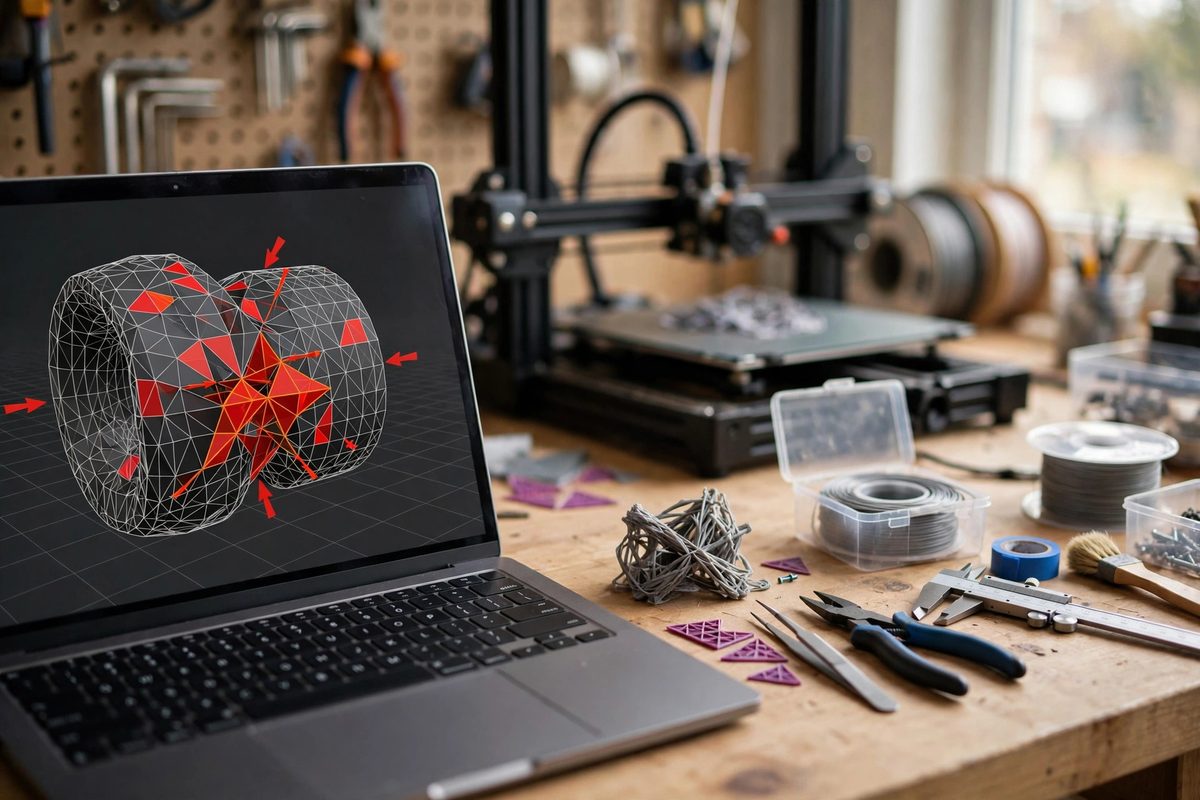
What normals are and why they flip
Every triangle in an STL has a normal vector, a direction perpendicular to the face that declares which side is outward. The convention is that normals point away from the solid interior. Modeling operations, mirrored parts, boolean subtractions, and format conversions can all flip normals so they point inward, and a model with inward-pointing faces looks fine in most 3D viewers because viewers often render both sides.
The slicer is not so forgiving. It uses the normals to decide where material goes. A flipped face tells the slicer that solid is empty and empty is solid in that region, which produces walls that print on the wrong side of the surface, infill that fills the air outside the model, or sections the slicer skips entirely because it concludes they are already hollow.
Detecting the damage before printing
Most slicers include a mesh analysis or repair tool that flags flipped normals, holes, and intersecting faces on import. Run it on every model you did not create yourself, and on every model that has been through boolean operations or format conversions. The analysis takes seconds and reports exactly what is wrong.
For a visual check, look at the model in a viewer that renders face orientation, often shown as darker or differently colored backfaces. Patches of wrong-colored faces on an otherwise consistent model are flipped normals. Areas where the surface looks tangled or where faces visibly pass through each other are self-intersections. Both are repairable, but they need different repairs.
Fixing flipped normals
Isolated flipped faces are the easy case: select them and flip or recalculate their normals so they agree with their neighbors. Most mesh tools offer a "recalculate outside" or "unify normals" operation that propagates the correct orientation across connected faces from a known-good starting face. Run it, then verify visually that the whole model is consistent.
Be cautious with automatic unification on models that have interior structures or intentional double walls. The algorithm assumes a single consistent outside, and interior geometry can confuse it into flipping faces that were correct. Check the result, especially around complex interior features, rather than trusting the automation blindly.
Resolving self-intersecting faces
Self-intersections happen when parts of the mesh pass through each other: overlapping shells from a sloppy boolean, a mirrored half that does not quite meet its partner, or details embedded in a surface they do not cleanly join. The slicer sees multiple conflicting definitions of the solid boundary and has to guess, and its guesses produce the bizarre slicing artifacts.
The robust fix is a boolean union or a mesh merge operation that computes the true outer surface of the combined geometry, discarding the interior intersections. Most dedicated mesh repair tools do this automatically. When the automatic repair struggles, the manual approach is to separate the intersecting shells, fix each one, and re-combine them with a clean boolean. It is more work, but it produces a mesh the slicer cannot misinterpret.
Verifying the repair
After repair, re-run the mesh analysis to confirm zero errors, then slice and inspect the layer preview carefully. Step through the layers around the previously damaged areas and confirm that walls, infill, and supports generate sensibly. The layer preview is the final authority: if it looks right there, the mesh is right.
Keep the repaired file and note what was fixed. Models from shared libraries often carry the same defects in every download, and knowing the repair history saves repeating the diagnosis next time.
Check the mesh, fix the normals, resolve the intersections, and verify in the layer preview. Five minutes of mesh hygiene prevents hours of failed prints.
Related Guides
- Repairing Non-Manifold Geometry in Meshes: A mesh is manifold when it describes a watertight solid: every edge is shared by exactly two faces, with a consistent inside and outside
- Healing Degenerate Facets and Self-Intersections: An STL file is just a list of triangles, and not all triangle lists describe a printable solid. Degenerate facets, triangles with zero area, and
- Reducing Inverted Normal Facets in CAD Meshes: An STL file is a bag of triangles, and each triangle has a normal, an arrow declaring which side is "outside." When some of those arrows point
- Boundary Loop Normal Alignment on Complex Shells: An STL file describes a 3D model as a mesh of triangles, and each triangle has a normal, the direction its face points. For a closed, printable