
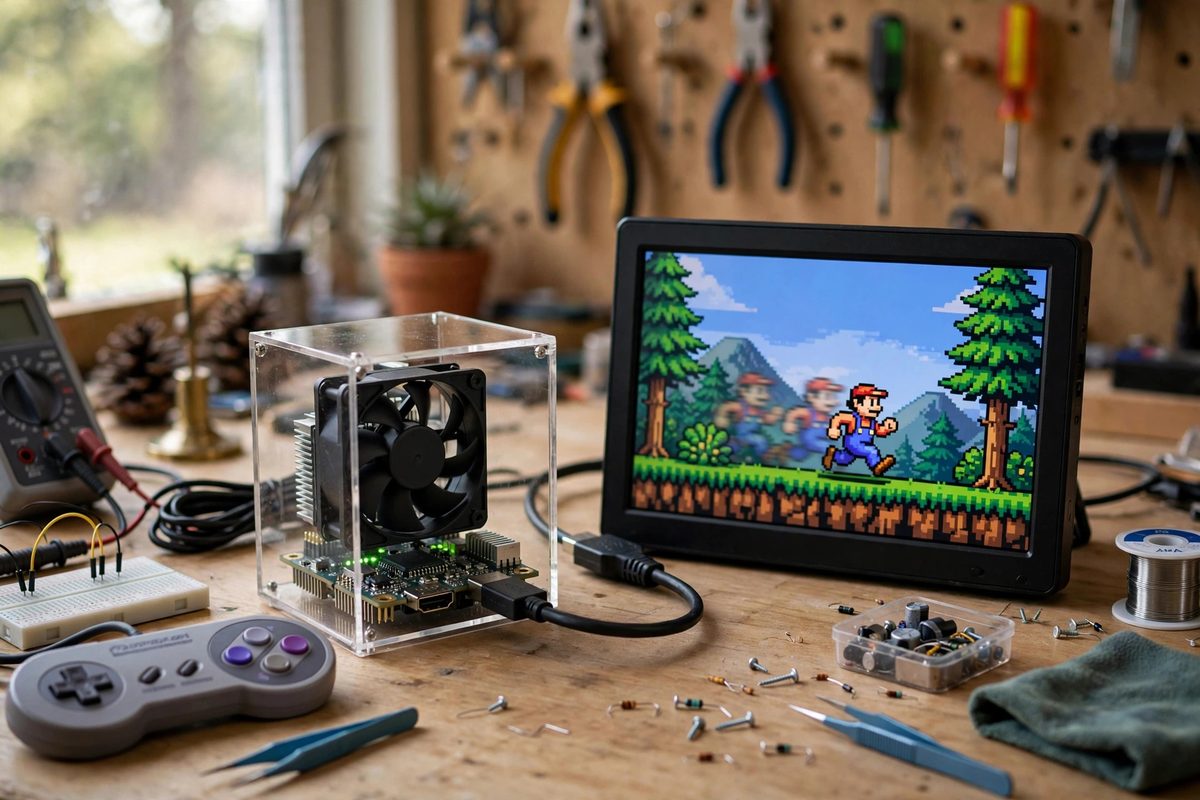
Micro-stutter, the barely-perceptible but maddening irregularity in scrolling and motion, ruins retro gaming on the Raspberry Pi more thoroughly than any graphics shortcoming. The games themselves ran at precise refresh rates: NTSC consoles at 60Hz (more precisely 59.94Hz), PAL at 50Hz, arcade boards at their own odd frequencies. When the Pi outputs at a rate that does not match the emulated system's rate, frames duplicate or drop unevenly, and the motion stutters. Setting the refresh rate to match the content is the single most impactful tuning for smooth retro gaming.
Why Mismatched Rates Stutter
A game producing 60 frames per second displayed on a 60Hz screen shows each frame once: perfect. The same game on a 50Hz display must show some frames twice and drop the cadence unevenly; the eye reads the irregularity as stutter. Even small mismatches matter: 60fps content on a 59.94Hz display drifts slowly out of sync, producing a periodic judder as the display repeats a frame to catch up. The precision that seems like pedantry is exactly what the eye detects.
Emulators compound this because they generate frames at the original hardware's rate regardless of the display. The emulator can buffer and resample, but every resampling strategy either stutters, tears, or adds latency. The clean solution is to make the display match the emulator, not to make the emulator apologize for the display.
Matching Rate to Content
Identify the emulated system's native rate: NTSC consoles and most arcade games target 60Hz (59.94Hz for NTSC-derived), PAL systems target 50Hz, and some arcade boards run at unusual rates like 54Hz or 61Hz. Configure the Pi's HDMI output to that rate. For mixed libraries spanning NTSC and PAL, the practical approach is per-system or per-game configurations that switch the display rate when the emulator launches.
The 59.94 versus 60 distinction deserves respect. NTSC's actual rate is 59.94Hz, and running the display at a true 60Hz against 59.94fps content produces a slow, rolling judder roughly once per second. If the display and Pi both support 59.94 modes, use them for NTSC content; the difference between 59.94 and 60 is small numerically and obvious visually.
Configuring the Pi's Output
The Pi's HDMI output rate is set through the display configuration: the mode lines that specify resolution and refresh together. Set both explicitly rather than letting the display negotiate; negotiation picks the display's preferred mode, which is usually 60Hz regardless of the content. For per-game rates, emulator frontends and launch scripts can switch modes before starting the emulator and restore afterward.
- Verify the actual output rate with the display's info panel or a measurement tool; configured does not always mean achieved.
- Test with scrolling content, not static screens; stutter is a motion phenomenon.
- Allow mode-switching time in launch scripts; the display needs a moment to resync.
- Keep a known-good fallback mode for the frontend menu itself.
VSync and Frame Pacing
With rates matched, enable vsync in the emulator so frames present in lockstep with the display's refresh. Vsync without rate matching just synchronizes the stutter; rate matching without vsync tears. The two work together: the matched rate provides the opportunity for smooth motion, and vsync realizes it. Some emulators offer additional frame-pacing options (frame delay, run-ahead) that reduce input latency; these interact with vsync settings, so tune them as a combination.
Watch for the emulator's audio sync fighting the video sync. Emulators that lock to audio clocks can drift against the display rate; the symptom is slowly accumulating stutter even with matched rates. The fix is usually in the emulator's sync settings: designate the video refresh as the master clock for gaming, accepting whatever minor audio resampling that requires.
When the Display Cannot Match
Some displays only accept 60Hz, period. For 50Hz PAL content on such a display, the options are imperfect: run at 60Hz and accept the judder, use the emulator's PAL60 modes where the game supports them, or prioritize the NTSC versions of games. For odd arcade rates, the nearest standard rate plus the emulator's best sync options is the pragmatic answer. Perfect smoothness requires a cooperative display; know your display's limits and choose content accordingly.
Variable refresh rate displays, where supported, dissolve the whole problem by adapting to the content's rate. If the setup includes one, it is the elegant solution; if not, manual rate matching remains the reliable path.
Match the rate to the system, enable vsync, verify with scrolling, and configure per-game where the library mixes standards. Micro-stutter is a solved problem with a specific solution; the smoothness of original hardware is achievable, one refresh rate at a time.
Related Guides
- Reducing GPIO Input Lag on Retro Emulators: Input lag is the delay between pressing a button and seeing the result, and on a Raspberry Pi retro gaming build it accumulates from every stage: the
- Overclocking Core Frequencies on RetroPie Builds: RetroPie on a Raspberry Pi emulates classic consoles, and emulation is brutally CPU-intensive: the Pi must simulate every cycle of the original
- Reducing Audio Latency in RetroPie Emulators: Nothing breaks the spell of a retro game faster than sound that lags the action. You press jump, the character leaves the ground, and the boing
- Overclocking Core Frequencies on RetroPie Consoles: RetroPie turns a Raspberry Pi into a retro gaming console, but some emulated systems demand more CPU than the Pi delivers at stock speeds